
Using GIMP to Create Pedal Artwork
Here’s the table of contents for the whole DIY pedal building series:
- Intro to DIY Pedal Building
- Beginner’s Course in Sketchup, Modeling a 125B Guitar Pedal Enclosure
- Drilling a 125B Guitar Effects Pedal Enclosure
- Pedal Enclosure Finishing: Surface Prep, Priming and Painting
- Using GIMP to Create Pedal Artwork
- Printing and Applying Waterslide Decal to Pedal Enclosure
The next step in finishing up the pedal that we’ve modeled, drilled and painted previously, is to prepare the artwork and labels.
In this tutorial, I will demonstrate how to compose your pedal artwork in GIMP, the free GNU Image Manipulation Program. I’m using GIMP 2.8.2 on Windows, but it also runs on Mac and Linux.
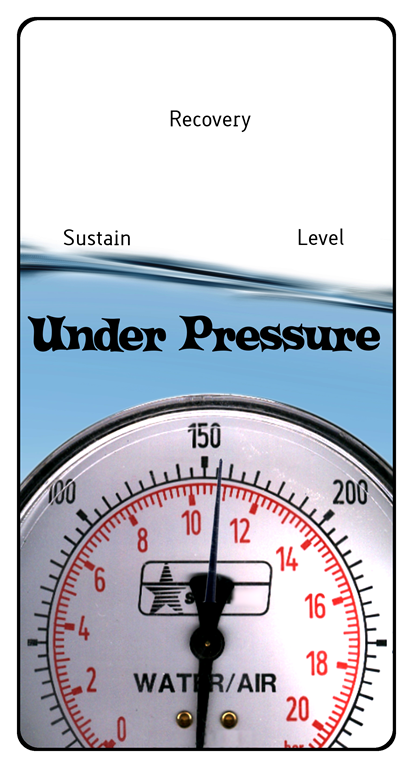
I start with an overview of my Under Pressure compressor and Speed Racer Overdrive artwork, and then show how to compose your own pedal artwork from scratch.
I cover the basics of project setup, layout, working with the rulers and guidelines, the graphics and text editing and selection tools, sourcing artwork and fonts, retouching and removing blemishes, extracting components from a larger image, layer compositing with masks, and more.
Here are some of the resources shown in this video:
- GIMP – Free photo/image editing and authoring
- Urban Fonts – great resource for all kinds of fonts
- RGB Stock – free stock photos and artwork
- A brief clip of me using a Wacom tablet with pressure sensitive brushes in GIMP, excerpted from my JFET tutorial video.
Here’s a zip of the GIMP project file, and related fonts and images:
- A zip of the GIMP project file for this turorial, along with all source materials. Note, you’ll need to install the BellBottom font in order to properly render the large text.
This project zip contains some materials that I didn’t create myself. They are:
- Pressure gauge image:
Air_Water_Pressure_Gauge_by_FantasyStock.jpg
Posted by Fantasy Stock - Blue waves image:
2dRf60W.jpg
Posted by Jana Kollárová - BellBottom Laser font:
Belbott0.ttf
Posted by Iconian Fonts
October 16, 2012 @ 11:13 am
complimenti, è davvero grande l’aiuto e le idee che dai a coloro che hanno la tua stessa passione.
grazie davvero.
continua sempre cosi
October 16, 2012 @ 11:21 am
Grazie mille!
John
October 16, 2012 @ 8:56 pm
October 20, 2012 @ 6:34 am
Maybe you could PM me and we could discuss making a post at my site in the Forum.
October 20, 2012 @ 11:51 am
December 8, 2012 @ 5:53 pm
Thanks for the Vid
Waterslide Decals -
December 17, 2012 @ 12:12 pm
[…] In this final installment on finishing your own guitar effects pedals, I demonstrate how to print and apply the waterslide decal to the pedal, and apply a durable clear finish. In previous videos, I showed how to model, drill, and paint the enclosure, and design and prepare the artwork and labels in GIMP. […]
March 23, 2013 @ 2:13 am
You just made my weekend a lot easier
April 3, 2013 @ 6:49 pm
April 6, 2013 @ 10:42 pm
Can you print actual size from other apps?
April 16, 2013 @ 9:57 pm
April 17, 2013 @ 9:43 am
May 12, 2013 @ 9:07 pm
May 18, 2013 @ 2:58 pm
August 1, 2013 @ 3:28 am
I cant seem to work it out
thanks
August 8, 2013 @ 1:26 pm
October 25, 2013 @ 7:42 am
November 1, 2013 @ 2:32 pm
I really appreciate this tutorial.
I’m just getting my feed wet in this. Learning GIMP is proving to be quite a challenge. My first priority is just getting some of the drilling templates as layers, then I can get more into the graphics portions. Thanks for all the posts.
November 28, 2013 @ 6:53 am
times.And im having a dificulty to mirroring an overall image for etch
engraving.
December 26, 2013 @ 7:51 pm
larning a lot with you.
December 26, 2013 @ 7:53 pm
January 12, 2014 @ 8:33 pm
designing my art. Thanks!
January 28, 2014 @ 3:19 pm
kits and parts and your lessons really makes me enthusiastic as to building
my kits and making them look good at the same time.
February 2, 2014 @ 6:41 am
i don´t know how to do this but i have my own project coming up and i want
to make my own artwork and put it on my parametic EQ pedal 🙂
February 4, 2014 @ 7:22 pm
February 10, 2014 @ 10:11 am
February 14, 2014 @ 11:12 pm
do you use for a clear coating? Ive used Future floor polish,and hobby
lacquer clear coat, but neither is very durable.
February 18, 2014 @ 11:02 am
thanks
March 29, 2014 @ 7:48 pm
reverb pedal.. it’s a spring.
May 2, 2014 @ 7:35 pm
May 12, 2014 @ 7:21 pm
building!
May 17, 2014 @ 4:58 am
gorilla level now!
July 15, 2014 @ 9:48 pm
tools, thanks for all the help.
December 20, 2014 @ 8:17 am
January 27, 2015 @ 7:42 pm
im using a black pedal how can I make the border none black? i am all ready
to print. Your video was very helpful although the new version of gimp is
different . also as a noob it took me a long time . i have several issues
with layers. and font. i tried to change font and when i click to type it
reverts back to the oriinal font no matter what. try it keeps reverting to
sans font. any suggestions? one last,question how can i change the
background color to black its white and if i try moving the layers around
everything gets jumbled?
January 27, 2015 @ 7:43 pm
picture of the pedal i die anyway to so that?
May 5, 2015 @ 7:13 pm
step by step. I’m hoping to have my pedal done by the end of the weekend.
As this is my first DIY decoration, it won’t be anything super, but it
will be mine and it will be unique. Thank you so much for taking the time
to document this process!
May 17, 2015 @ 12:20 am
June 25, 2015 @ 11:41 am
pedals. Just uploaded gimp, and struggling to learn it. I have several
pcb’s built. But still need to drill the holes and create the graphics. I’m
really struggling with the graphics part. This tutorial is very helpful to
me.
Thank you,
Steve
Intro to DIY Pedal Building - Planet Z
September 1, 2016 @ 11:28 am
[…] Using GIMP to Create Pedal Artwork […]
Finishing the Enclosure - Planet Z
September 1, 2016 @ 12:20 pm
[…] Using GIMP to Create Pedal Artwork […]
Sketch Me Up! – Planet Z
May 2, 2017 @ 8:20 pm
[…] Using GIMP to Create Pedal Artwork […]
Drilling the Enclosure – Planet Z
May 2, 2017 @ 8:21 pm
[…] Using GIMP to Create Pedal Artwork […]
DIY Guitar Pedal Building Series – Planet Z
May 3, 2017 @ 1:02 pm
[…] Using GIMP to Create Pedal Artwork […]