
Sketch Me Up!
Here’s the table of contents for the whole DIY pedal building series:
- Intro to DIY Pedal Building
- Beginner’s Course in Sketchup
- Drilling a 125B Guitar Effects Pedal Enclosure
- Pedal Enclosure Finishing: Surface Prep, Priming, Painting
- Using GIMP to Create Pedal Artwork
- Printing and Applying Waterslide Decal to Pedal Enclosure
This is part 2 of my new series on building guitar effects pedals.
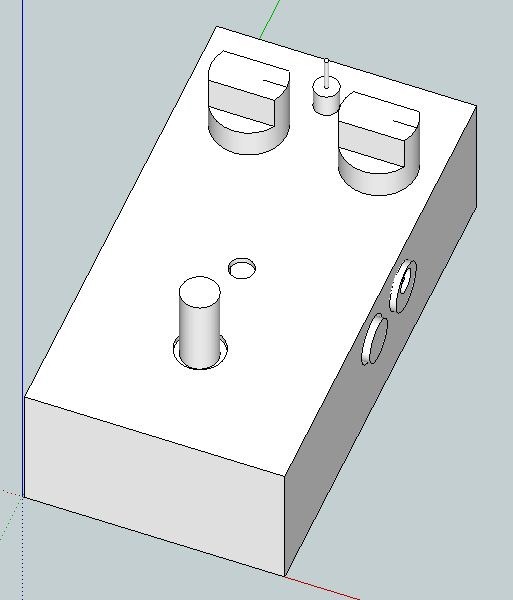
This part of the project ended up being far more grandiose than I originally intended. I started out planning to just show how to model this diecast aluminum 125B guitar pedal enclosure, to make sure my PCB and components would fit properly inside. But by the time I was done with it, it was essentially a complete beginner’s how-to course for Google Sketchup. (Note, Sketchup is now part of Trimble instead of Google).
To give you an idea of how long this took for me to complete, I started filming the intro and the Sketchup tutorial videos in June of 2011. Over the last year, in the time-spaces between the rest of life, I’ve been gradually editing, revising, extending, and composing music for the project.
In this tutorial, I start out with the absolute basics, and gradually pick up the pace, progressing to more and more advanced topics. I divided the video up into 5 sections, but kept them all together in one 55-minute video. In my previous multi-part videos, I had to split them into multiple YouTube clips, due to the YouTube length restrictions, but now that they’ve relaxed those for my account- I hope it’ll be better having it all in one video.
Here is the Sketchup file that I used in the tutorial if you’re interested: Download sketchup file.
Each section assumes a familiarity with the previous section topics. Here’s the table of contents:
Part 1 (02:39): Parts of the Sketchup Window, Mouse Tooltips, Instructor Window, Entity Info, Layers and Components, The Red, Green and Blue Axes, Rectangle Tool, Typing to Change Dimensions, Zoom Tool and Zoom Extents, Using a Mouse with Scroll Wheel, Orbit Tool, Undo Tool, Push/Pull Tool, Offset Tool, Infinite Undo and Redo, Tape Measure Tool, Reference Lines, Select Tool, Components, Open & Close Component for Edit, Select All
Part 2 (15:34): Modeling the Battery, Panning with Orbit Tool, Move Tool, Anchor Points for Moving, X-Ray Mode, Custom Keyboard Shortcuts, Modeling 3PDT Footswitch, Finding Center of Rectangle, Circle Tool, Delete Guides, Positioning a Component, Cutting a Hole in a Face, Moving the Switch into a Hole, Zoom and Fine Positioning
Part 3 (26:18): Placing Components in Layers, Using Entity Info, Hiding and Showing Layers, Modeling a Neutrik Enclosed Jack, Arc and Circle Tools, Typing Measurement- One Dimension Only, Placing Jack in Enclosure, Rotate Tool, Axis Reference When Rotating, Fine Control of Move Tool, Locking Inference Direction, Display Crosshairs Preference, Components Window, In Model List, Copying a Component, Changing All Component Copies, Make Component Unique, Standard Camera Views
Part 4 (38:54): 3D Warehouse, Download into Model, Renaming Component, Copy/Paste from a Sketchup File, Drag from Components List, Drag to Select, Shift Click for Selection, Modifying the 16mm Potentiometer, Chicken Head and Davies Knobs, Offset Tool, Makng a Circle in a Circle, Making a Compound Component, Pot/Knob Group, Placing Pots, Advanced Reference Lines, and Inference Points, Pencil Line Tool, Cutting Holes for Pots and Switch, Placing Pots and Knobs
Part 5 (47:33): Modeling a Simple PCB, Select All Connected Faces, Checking the Overall Fit, Hide Layers, Drilling Template Top, Marking Small Drillbit Guides, Change Active Layer for Drawing, Circle Center Snapping, Drilling Template Sides, Printing in 1:1 Aspect Ratio, Use Standard Camera View, Use Parallel Projection not Perspective, Use Landscape Printing, Turn off Fit To Page, Set Scale 1:1, Experiment with Use Model Extents and Pan Model in Window, Make it Look Right in Print Preview
In the next parts (coming soon), I’ll actually drill the enclosure, and then move on to painting and finishing.
September 1, 2012 @ 7:23 am
September 1, 2012 @ 9:57 am
September 1, 2012 @ 10:09 am
September 1, 2012 @ 12:16 pm
September 1, 2012 @ 2:42 pm
September 1, 2012 @ 10:02 pm
September 2, 2012 @ 9:59 am
September 2, 2012 @ 5:29 pm
September 2, 2012 @ 7:03 am
September 2, 2012 @ 9:55 am
Designing a house- sounds like an awesome project. Enjoy!
Intro to DIY Pedal Building -
September 3, 2012 @ 9:26 pm
[…] In part 2, I give a full beginner’s course in Google Sketchup. […]
Sketch Me Up- Melodies -
September 3, 2012 @ 10:25 pm
[…] air. Not good! As I was nearing completion of my epically long video for part 2 in my guitar pedal building series, one of the big items left on my to-do list was to find some appropriate thematic music for the […]
September 4, 2012 @ 7:10 pm
September 5, 2012 @ 5:54 am
Great video. Thank you! I’m trying to draw my next guitar with sketch up, but having troubles with curved surfaces. Cheers
September 5, 2012 @ 11:22 am
If you’re looking to shape a guitar body for example, lay out the shape in 2d first, using an overhead view, with the circle, arc and pencil tools. Then pull it up by the body thickness. To round-over the corners, modify an edge of it and use the follow-me tool to drag your round-over around the whole body.
The sandbox tool may be worth looking at too, for more organic shapes.
-John
September 6, 2012 @ 6:45 am
Thanks John. I’ve made a hand free drawing, imported to Sketchup but I could not fit in 2D. It’s asked to “adjust”. Thank you anyway.
Drilling the Enclosure -
September 7, 2012 @ 7:17 pm
[…] that we’ve modeled the enclosure and printed a drilling template, we’re ready to jump out of Sketchup and into the real […]
Finishing the Enclosure -
September 28, 2012 @ 6:03 pm
[…] previous posts, we modeled the enclosure in Sketchup, drilled it, and now we’re ready for paint and artwork. In this video, I talk […]
October 15, 2012 @ 6:01 pm
October 15, 2012 @ 6:04 pm
Using GIMP to Create Pedal Artwork -
October 15, 2012 @ 10:08 pm
[…] next step in finishing up the pedal that we’ve modeled, drilled and painted previously, is to prepare the artwork and […]
October 20, 2012 @ 1:04 pm
October 20, 2012 @ 2:45 pm
October 23, 2012 @ 1:22 am
October 27, 2012 @ 5:39 pm
November 2, 2012 @ 4:08 pm
At the beginning of this video (which was great btw) you referenced another Sketchup file of a dresser with drawers and that you were Ble to create a ‘cut list’ of all the wood pieces required.
Do you have a video that shows how you created that file and the dresser as well as how to create the cut list and other reports?
Thanks
Terry
November 2, 2012 @ 4:48 pm
Hi Terry,
Sorry, I don’t have another video about the dresser sketchup project. However, to model the dresser, I used exactly the same techniques as shown in this video. I did a rough sketch first, just a rectangle of the dresser footprint, pulled up to the right height, then I drew drawers onto the surface and pushed them through- that kind of thing. Once I had the rough idea, I then modeled individual components representing each piece of wood in the project, including all the necessary mortise/tenon joinery.
Unfortunately, it was not an automated process to create the cut list. I just used the rectangle tool to draw some 2D boards off to the side (e.g. a 10 foot long 8 inch wide board). And then, referring back to the main model for the parts, I marked out the individual pieces I would need, again using the rectangle tool. I used the text tool to label them so I could keep track of what I needed- and then I printed it out and took it into the shop with me.
Hope this helps!
John
Waterslide Decals -
December 17, 2012 @ 12:12 pm
[…] to the pedal, and apply a durable clear finish. In previous videos, I showed how to model, drill, and paint the enclosure, and design and prepare the artwork and labels in […]
February 8, 2013 @ 7:16 pm
February 18, 2013 @ 12:06 pm
March 6, 2013 @ 1:40 pm
April 1, 2013 @ 6:48 pm
April 7, 2013 @ 4:12 pm
April 8, 2013 @ 9:41 am
April 10, 2013 @ 11:55 am
April 10, 2013 @ 1:29 pm
April 13, 2013 @ 11:54 am
April 16, 2013 @ 11:50 pm
If I have created a rectangle and I want to go back to change the length of the rectangle, Can you tell me how I can change the length and type in the ‘new’ dimension that I need for the length?
Thank-you
April 17, 2013 @ 9:32 am
May 6, 2013 @ 12:56 pm
May 7, 2013 @ 11:04 am
May 10, 2013 @ 2:55 am
May 30, 2013 @ 12:01 pm
May 30, 2013 @ 12:05 pm
May 30, 2013 @ 12:46 pm
June 6, 2013 @ 3:02 pm
cheers!
June 6, 2013 @ 3:16 pm
June 15, 2013 @ 9:21 am
June 20, 2013 @ 3:53 pm
July 9, 2013 @ 12:36 pm
August 3, 2013 @ 9:38 am
August 4, 2013 @ 5:48 pm
August 21, 2013 @ 6:49 pm
August 24, 2013 @ 5:35 am
September 2, 2013 @ 12:22 pm
October 4, 2013 @ 8:58 am
November 16, 2013 @ 8:21 am
switch with the push/pull tool it just makes a cylinder. Are you using some
keyboard command while push/pulling to create the hole?
January 13, 2014 @ 5:23 pm
work. Actually, that’s a very well made video with the little menu in the
description and your explanations were extremealy good.
March 11, 2014 @ 6:49 pm
March 26, 2014 @ 1:17 am
April 29, 2014 @ 4:06 pm
much clearer, especially about layers, components, and groups. I only say
especially about those things because I wasn’t finding answers about how
and when to use which before, and because they are all things I can really
use to make my work easier. You’re really very good at explaining things in
ways that are easy to understand.
I do have a problem with this video, though. I’m going to have to watch it
again, and that means another hour that I won’t be playing in SketchUp.
February 27, 2015 @ 1:47 pm
visible so I can see what I am actually selecting
Please reply
Best regards
March 21, 2015 @ 10:32 am
other content as well. Keep it up.
May 5, 2015 @ 6:06 am
June 9, 2015 @ 11:08 am
hole for the switch, I don’t get a hole through my enclosure. I get a
cylinder on the underside of the enclosure.
Intro to DIY Pedal Building - Planet Z
September 1, 2016 @ 10:54 am
[…] Beginner’s Course in Sketchup, Modeling a 125B Guitar Pedal Enclosure […]
Drilling the Enclosure - Planet Z
September 1, 2016 @ 11:13 am
[…] Beginner’s Course in Sketchup, Modeling a 125B Guitar Pedal Enclosure […]
DIY Guitar Pedal Building Series - Planet Z
September 1, 2016 @ 11:50 am
[…] Beginner’s Course in Sketchup, Modeling a 125B Guitar Pedal Enclosure […]
Finishing the Enclosure - Planet Z
September 1, 2016 @ 12:05 pm
[…] Beginner’s Course in Sketchup, Modeling a 125B Guitar Pedal Enclosure […]
April and the Summer Music Project Gig – Planet Z
May 4, 2017 @ 12:05 pm
[…] roller bridge replacement, and then kick off the series on DIY pedals, starting with a tutorial on modeling a pedal enclosure in Google Sketchup, then drilling, painting and applying artwork to the […]
Sketch Me Up- Melodies – Planet Z
May 4, 2017 @ 12:31 pm
[…] air. Not good! As I was nearing completion of my epically long video for part 2 in my guitar pedal building series, one of the big items left on my to-do list was to find some appropriate thematic music for the […]