
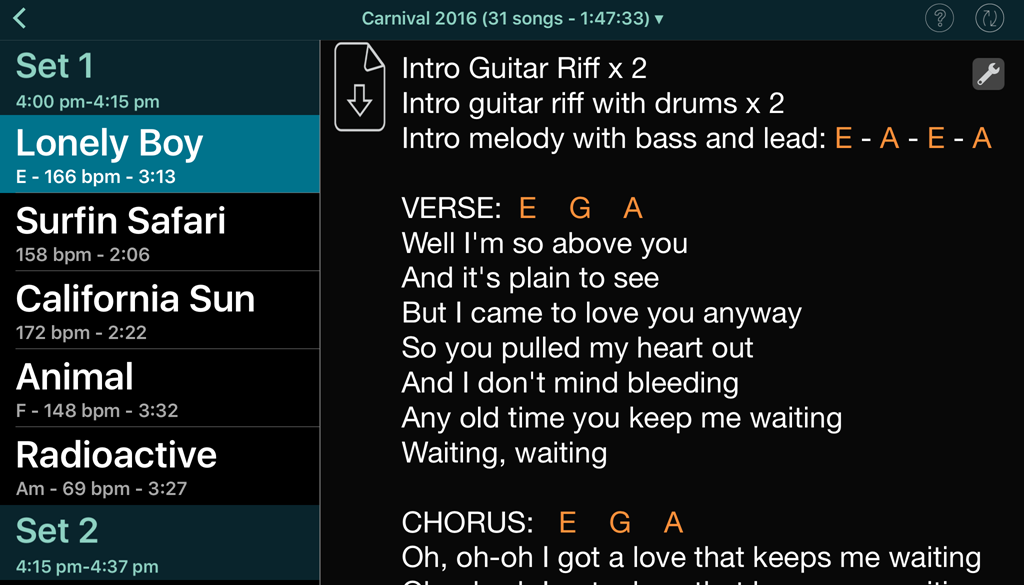
Set List Maker
I’ve been using the Set List Maker iOS app since 2013. This app has a wealth of features for the practicing / gigging band and has become an invaluable timesaver.
Prior to Set List Maker, I would always bring a folder full of printed pages and notes to rehearsals, and make copies for my bandmates. With our growing repertoire, it was an ever-increasing waste of time scrounging through the folder before playing a new song.
Now I just bring my iPad mini! It attaches to my mic stand using an IK Multimedia iKlip 2.
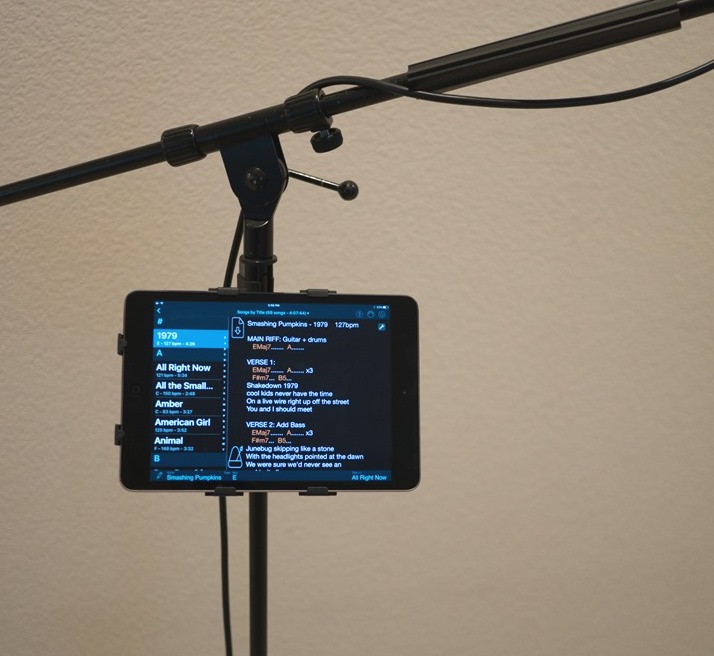
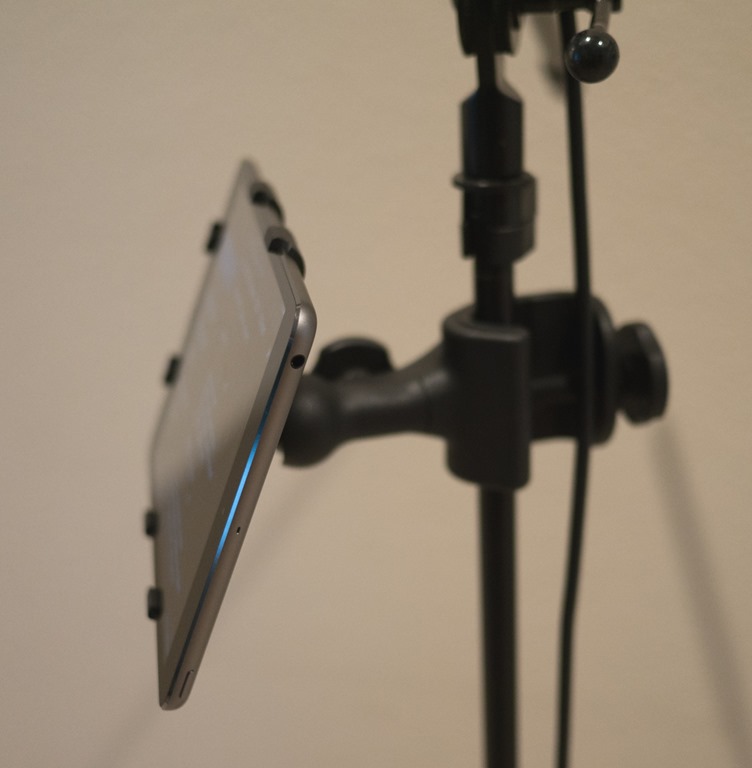
This works out perfectly as I also need the iPad to control our Mackie DL32R mixer. Previously, I used a full-sized iPad mounted to my mic stand, but it was just too big. The iPad mini is a much better size. Our singer Gary uses an iPhone for lyrics, and he uses an iKlip Xpand.
Here, I’ll share an overview of Set List Maker, some tips on how to set it up, and the workflow we use with my band the Drop Daddies.
Writing Up Songs and Adding Them To Set List Maker
In my band, I’m in charge of working out the songs and transcribing lead sheets with lyrics and chord changes.
Generally, I do the write-up in a text editor on my Mac and then save the document to Dropbox. Then, over on the iPad or iPhone, I run the Dropbox app, select the new document to show the text, and do Select All / Copy to put the text in the clipboard.
Then I switch over to the Set List Maker app, and add the new song to the song list (with the + button), and paste in the text into the Lyrics box. I also enter the Artist, Title, Year and Tempo values. There’s a built-in tap tempo feature, but I generally prefer using the Metronome+ app to work out the tempo.
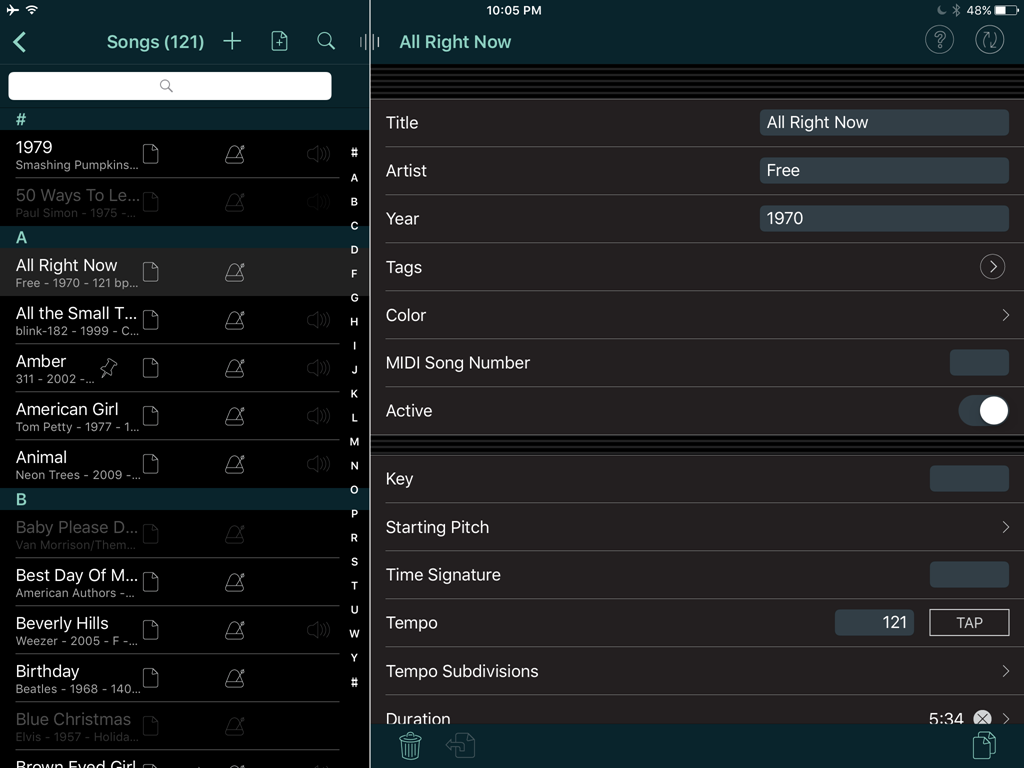
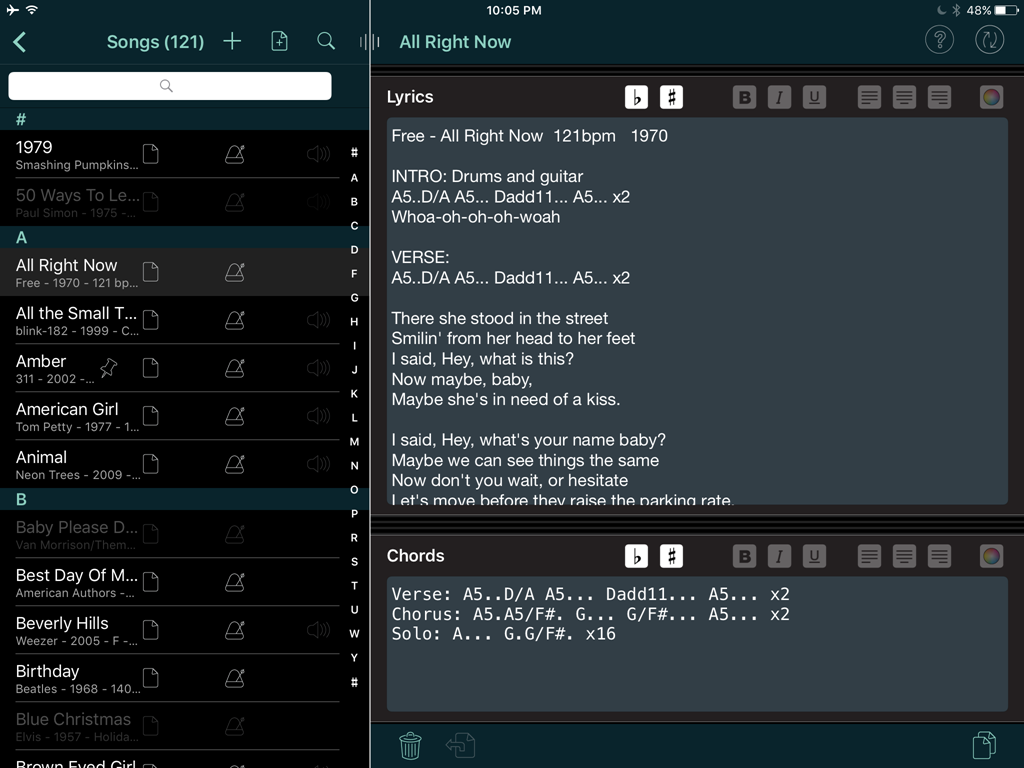
It is also important to enter in the song duration to enable the Set List Maker’s auto-scrolling lyrics feature, and to have reasonable set length estimates when preparing a set list for a show. I just take the length of the original mp3 recording, as we generally play true to the originals. I also sometimes add the Key or Starting Pitch, depending on the needs of the song. It’s great to have so much flexibility here.
Syncing
Now that I’ve written up the songs and entered them in Set List Maker, how do the other guys in the band get my changes?
Set List Maker has a fantastic cloud database sync feature (additional in-app purchase required) which synchronizes changes made on any device to all the others in the band.
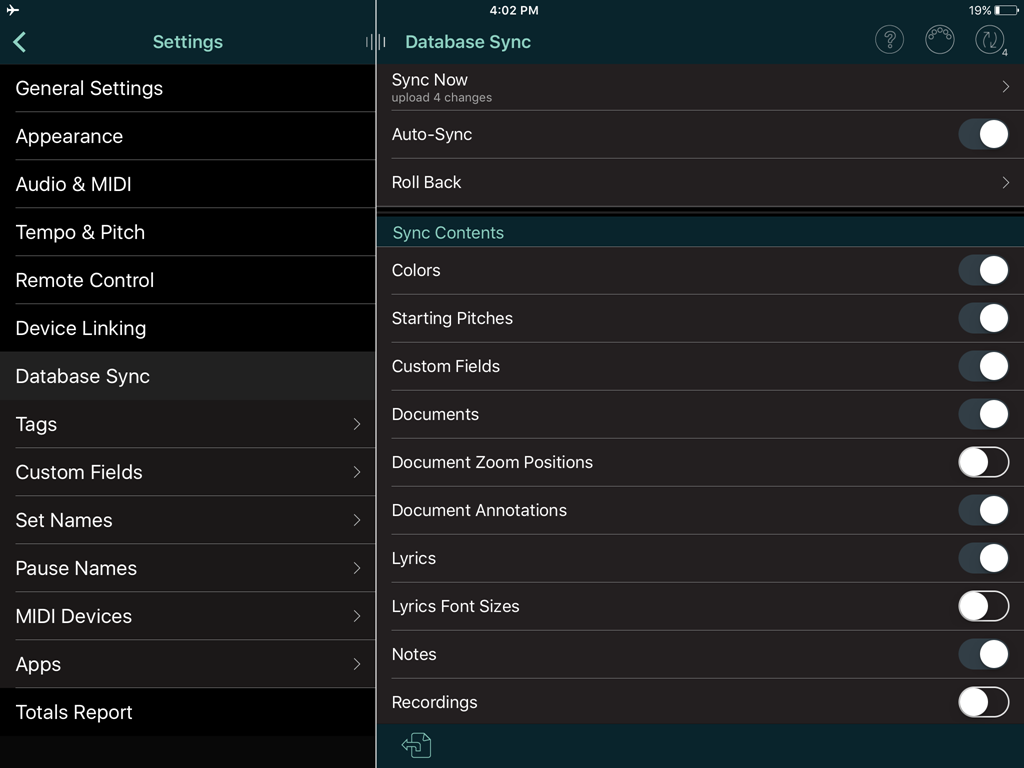 The back-end server is proprietary to Set List Maker- it doesn’t use iCloud or Dropbox, etc. That said, I’ve never had any issue with the cloud service being unavailable.
I have my settings configured to sync everything except the document zoom positions, font sizes, and recordings.
We have auto-sync enabled, so whenever I add a new song, or revise some lyrics, etc, the changes automatically upload to the cloud, and my bandmates’ devices will receive my changes the next time they run the app.
Getting Organized With Custom Tags And Fields
I use several custom tags to organize our songs. We currently have around 120 songs in Set list Maker, but not all of them are in active rotation. We shelved some tunes, as they weren’t working very well. And we always have a backlog of songs that I’ve written up, but haven’t had a chance to play them together yet.
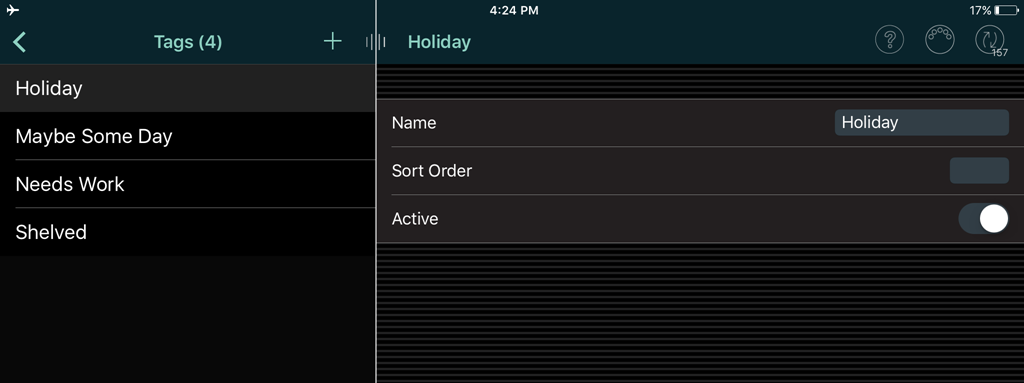 To keep the song list organized, I use tags like “Shelved” and “Maybe Some Day”. I’ve also added a “Holiday” tag for seasonal party songs- it’s not often that we want to see “Monster Mash” or “Grandma Got Run Over By A Reindeer”! Lastly, I have a “Needs Work” tag for songs that we need to remember to give some extra attention at rehearsal.
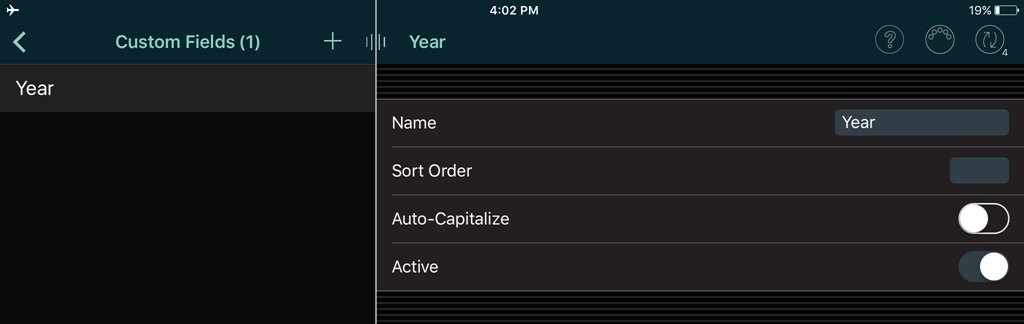 I’ve also added a custom field for Year- as it’s often useful to sort our songs by year to see our coverage of the decades.
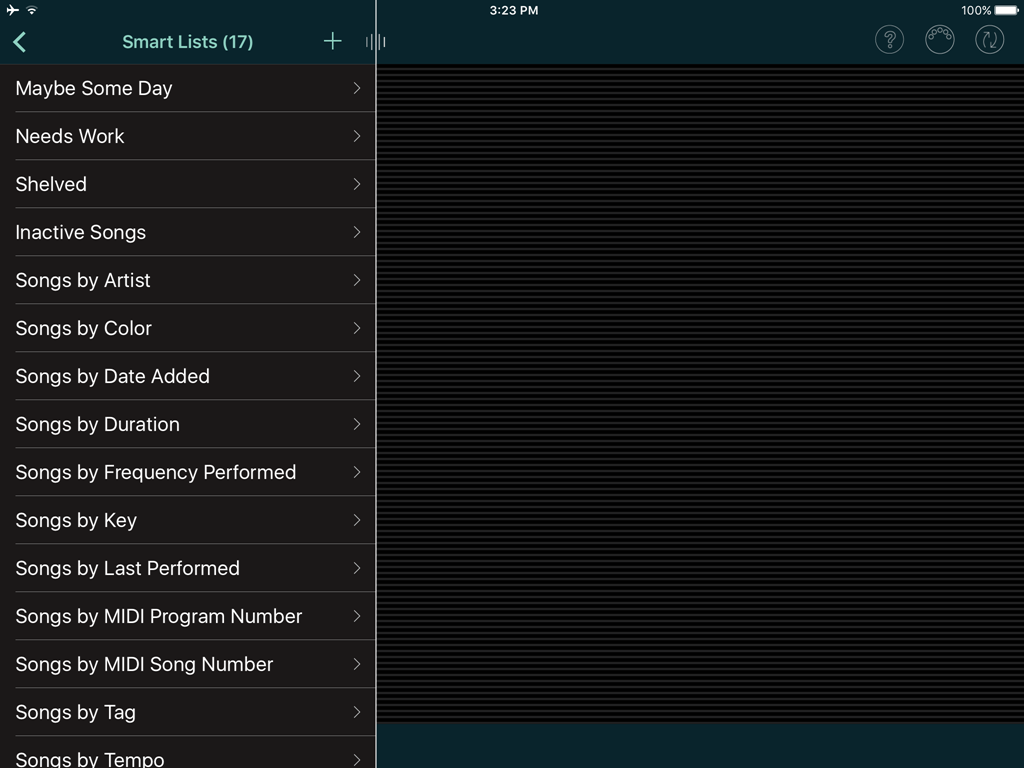
Tags and Fields are particularly useful when using the Smart Lists feature to show only a subset of our song list.
The Smart Lists page includes auto-generated lists for built-in fields like Artist, Title, Duration, etc. I’ve manually added smart lists for my custom tags and fields.
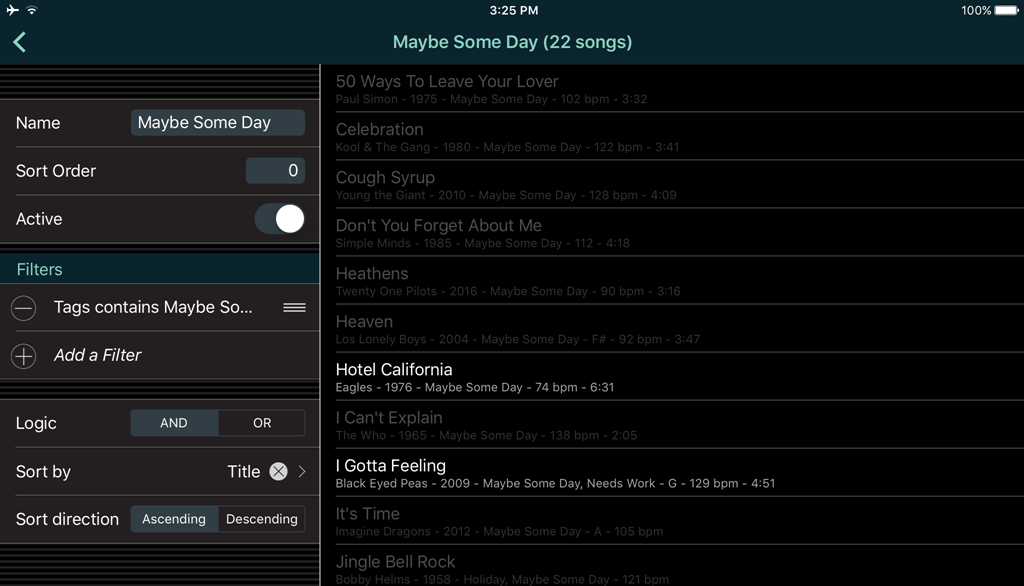 Shown here is the setup for the “Maybe Some Day” smart list. I’ve added a filter that specifies that the tag contains the text “Maybe Some Day”.
And I’ve specified the sort order as 0, because I wanted to show up at the top of the list, instead of alphabetically.
Chord Symbols
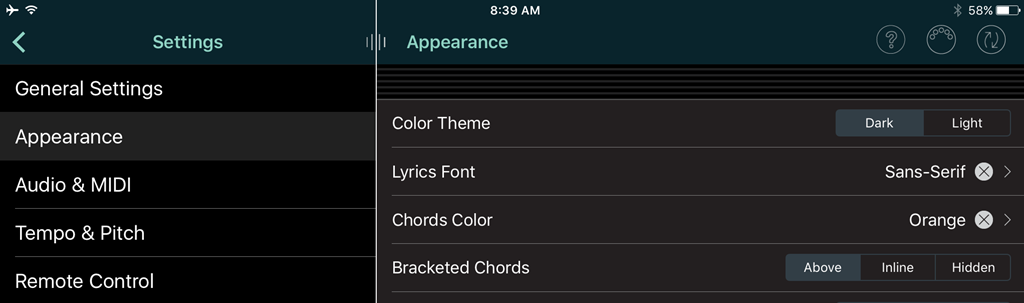 If you include standard chord names in your lyrics text, like “Amin / C / G7”, Set List Maker can recognize these as chord symbols and treat them specially. You can configure the settings to show the chord symbols in a different color. And if you place the chord names in square brackets, like [Amin], you can have it interleave the chord names with the lyrics or show them above the lyrics, or hide them altogether.
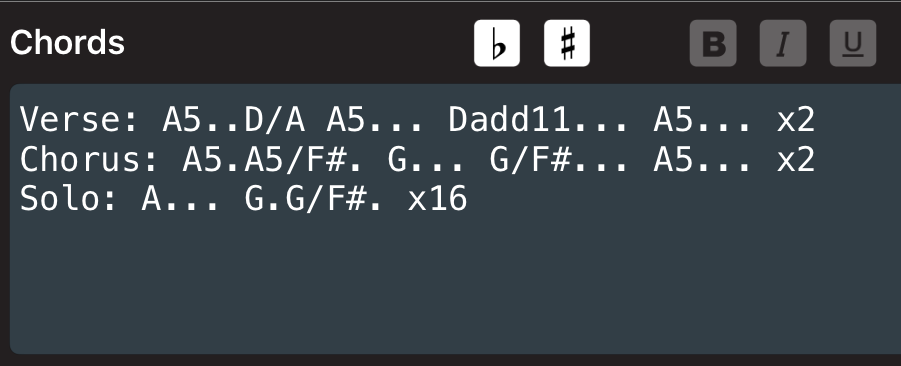 You can also enter the chords names into the Chords field, and they will show in a separate screen area above the lyrics, which can be separately zoomed and hidden. There’s a lot of flexibility here!
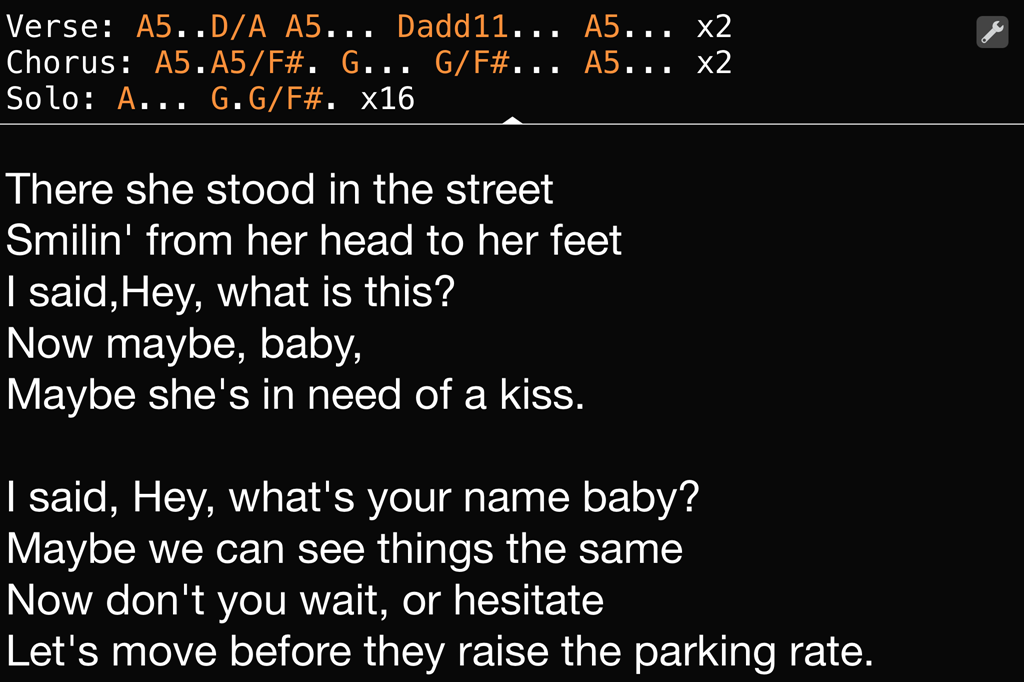
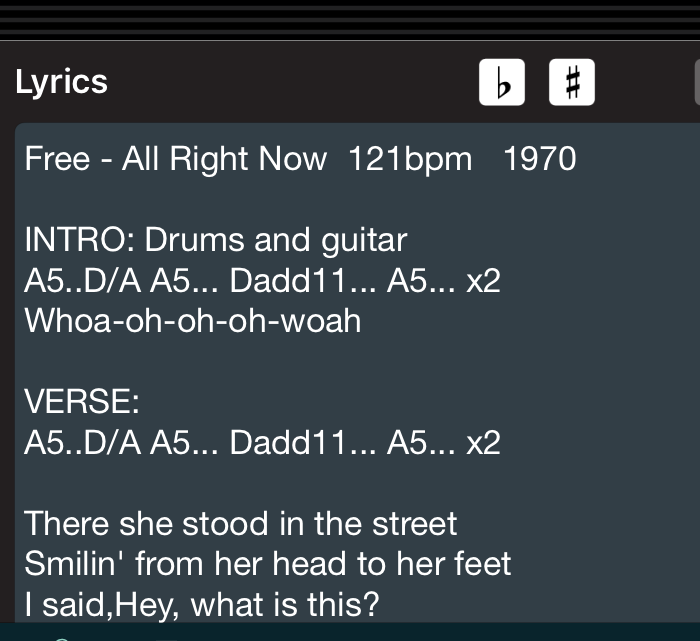 If you decide you want to play your song in a different key, you can quickly transpose all your chord names by touching the sharp/flat buttons in the lyrics editor
You can also add the sharp and flat buttons to your layout, which lets you non-destructively transpose all the chord names at a rehearsal. Speaking of Layouts, let’s take a look…
Layouts For Rehearsals and Gigs
When performing and rehearsing, I run the app landscape, with the set list along the left, and the lyrics on the right. I can always double-tap in the lyrics area to show the lyrics full-screen. Double-tap again to show the set list. And you can swipe left/right to change to the previous/next song, or just tap on a song name in the set list.
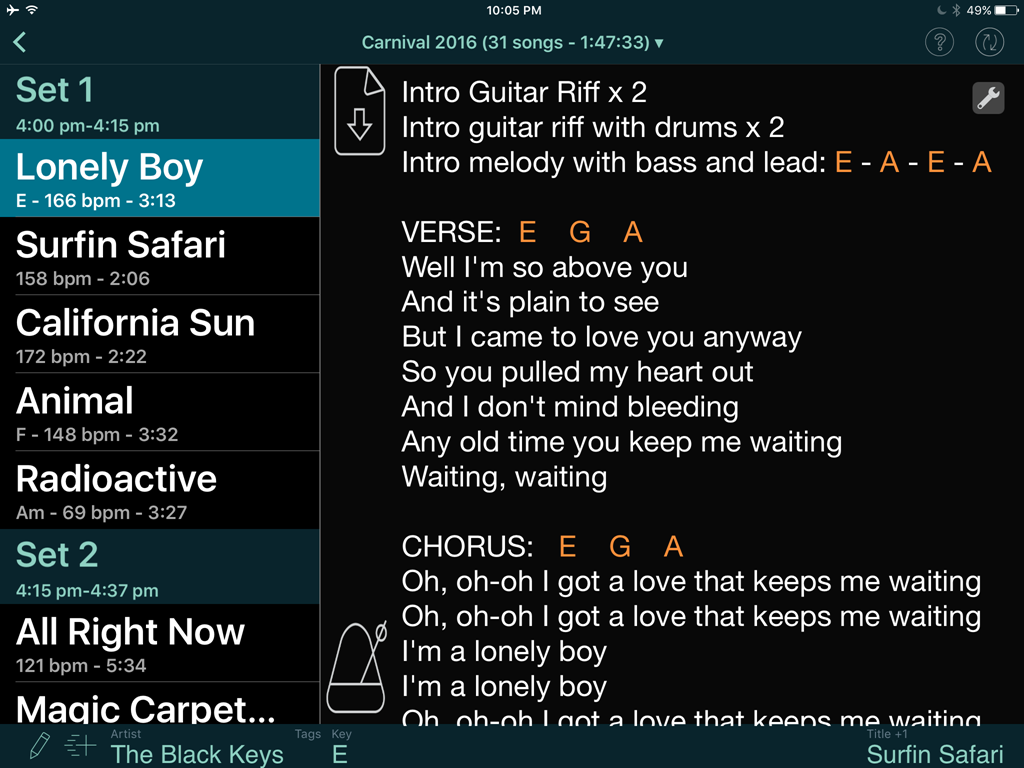 The song list on the left shows the song, tempo, key and duration. This is all configurable using Set List Maker’s Layout editor. You can have different layouts for Performing, Rehearsing, Practicing, or whatever.
I have configured my Perform layout to show the lyrics auto-scrolling button at the top, and the tempo button at the bottom. You can set up different layouts for performing and rehearsing.
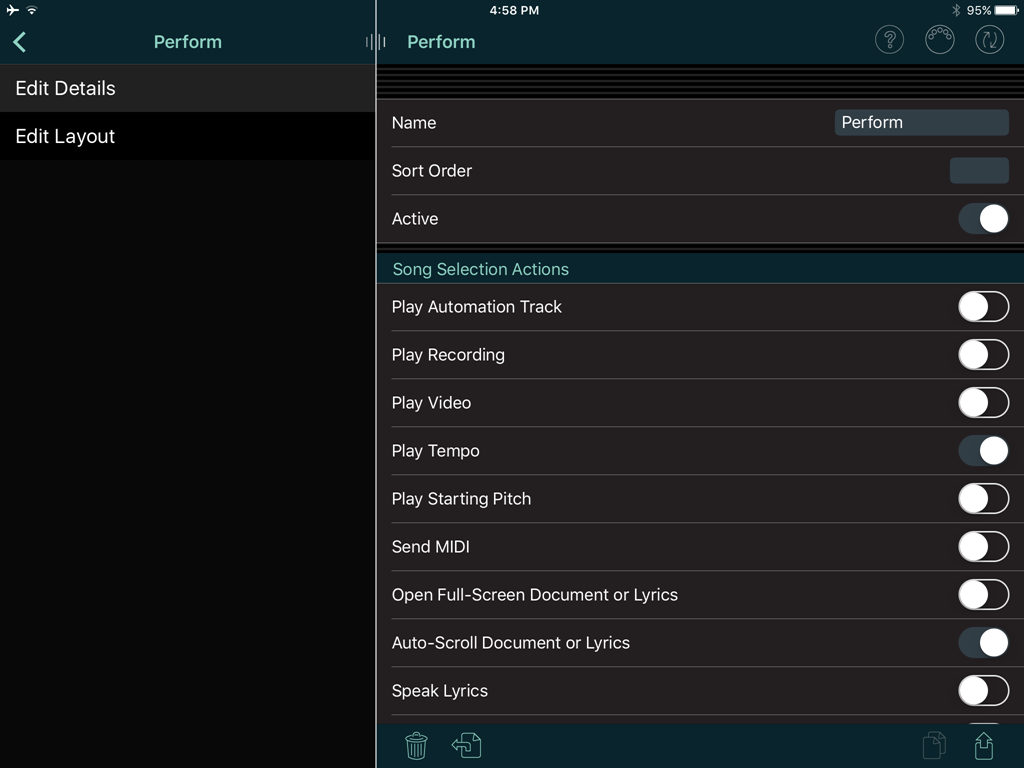 The Layout editor is super-configurable. It lets you place buttons and information displays anywhere on the screen. You can configure different layouts for landscape and portrait mode.
In the Details window for the layout, you can configure actions to occur on song selection, and on song completion. I have my Perform Layout set up to start scrolling the lyrics for me when I select a song. Note, this requires the song’s duration to be set in the Song settings.
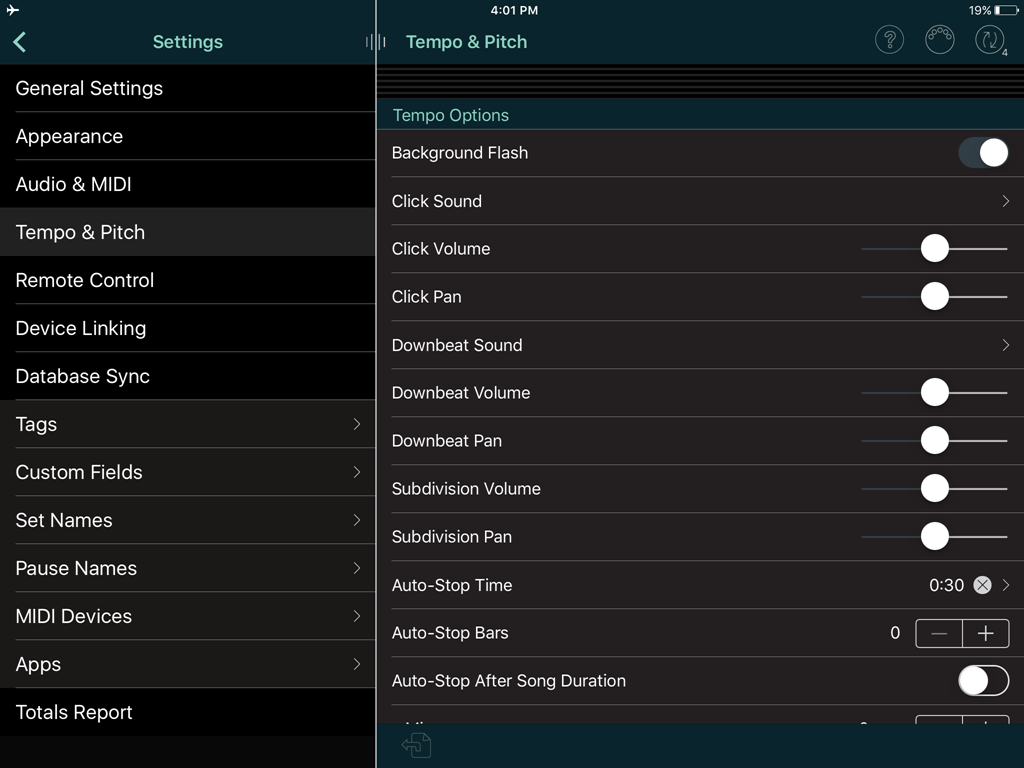 Also, I like to see a visual flashing tempo indicator when starting a song. This is useful for the tunes that I start before the rest of the band comes in – I select the song, stare at the flashing screen for a moment to internalize the tempo, and then start playing.
Here is the Tempo settings page, to configure it to flash instead of audibly click. I’ve also specified the tempo to stop flashing after 30 seconds, so it isn’t distracting when we inevitably drift from my starting tempo.
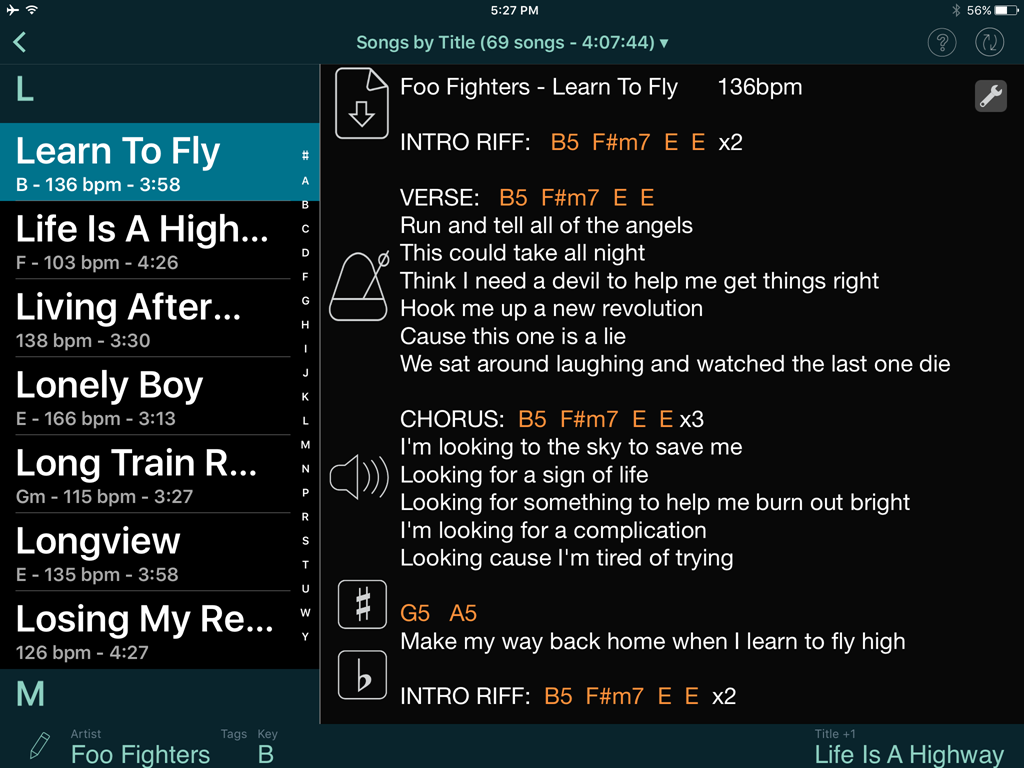 At rehearsals, I use a second layout which is the same as my Perform layout but adds in the transpose sharp/flat buttons, and the song play button (both which I would want to avoid accidentally bumping at a gig).
Song Playback
 You can attach references to mp3s from your local iTunes library to songs in your set list, which makes it easy to play them back at rehearsal, etc. Then, by adding the song player icon to your layout, you can start the song any time. When playing, it shows a count-down of remaining time in the song.
 You can also add more detailed song playback controls in your layout. The looping and speed buttons are intended for practice – letting you focus on a particular song section and slow it down without changing pitch. However, I find a bit frustrating to use– when I hit the loop button, it always seems to add an extra half-second or so to the loop, which makes practicing a particular section looped a bit painful. I prefer to use a separate app – the Amazing Slow Downer – for learning songs and practicing. It has flawless looping and speed/pitch controls.
Preparing a Show
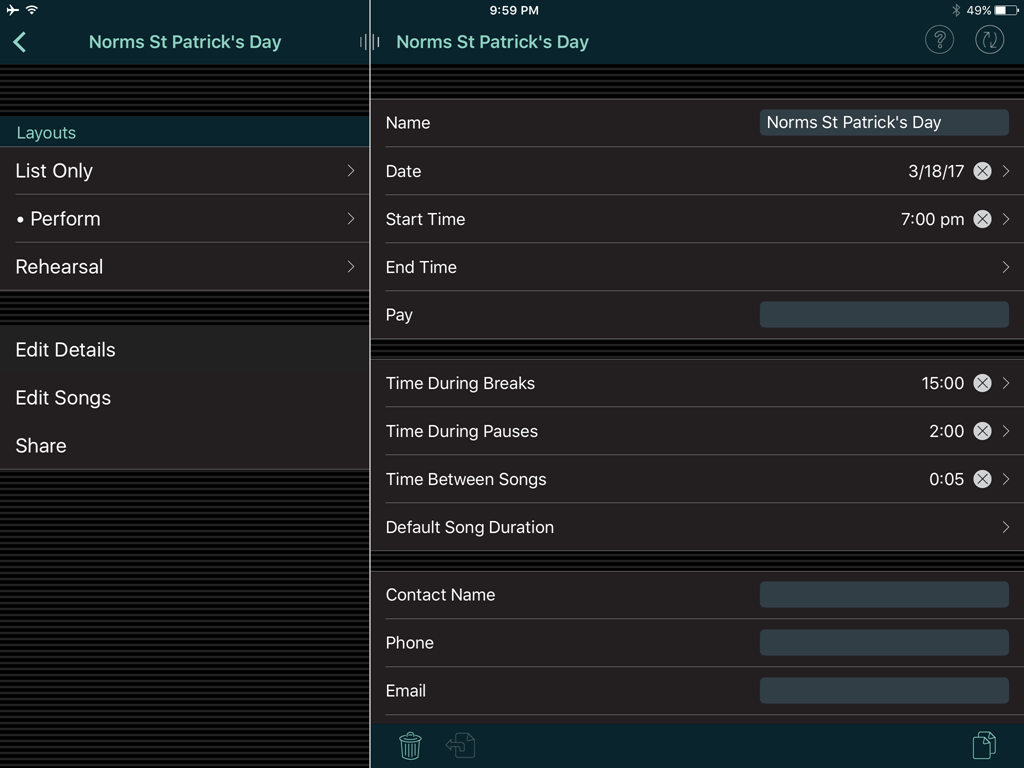 When preparing for a gig, you can create a named “Show” like the one shown here from our last St. Patricks’’s Day gig.
In the Edit Details page, you can set the show name, date, times, contact info, etc. And also set your break lengths, and average time between songs.
Note, you can also use the buttons at the bottom of this Details window to trash a show, or duplicate it as a starting point for a new show.
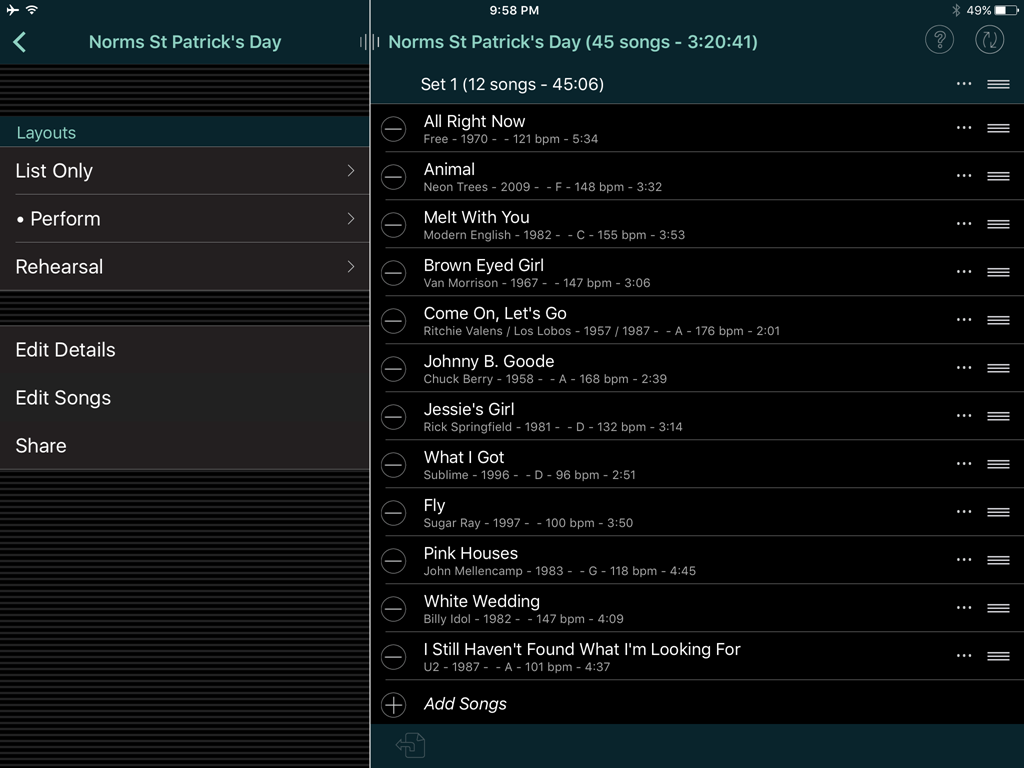 In the Edit Songs page, you can select songs from your song list and easily drag them to reorder.
You can insert pauses mid-set, and full breaks between sets. It keeps a running tally of the length of each set, and for the entire show. Note, in order for this to work properly, you need to have set the duration of each song back in the Song Settings.
When you’re ready to rehearse or perform the show, you just select the show by name and touch the layout name to launch it.
iPad Settings
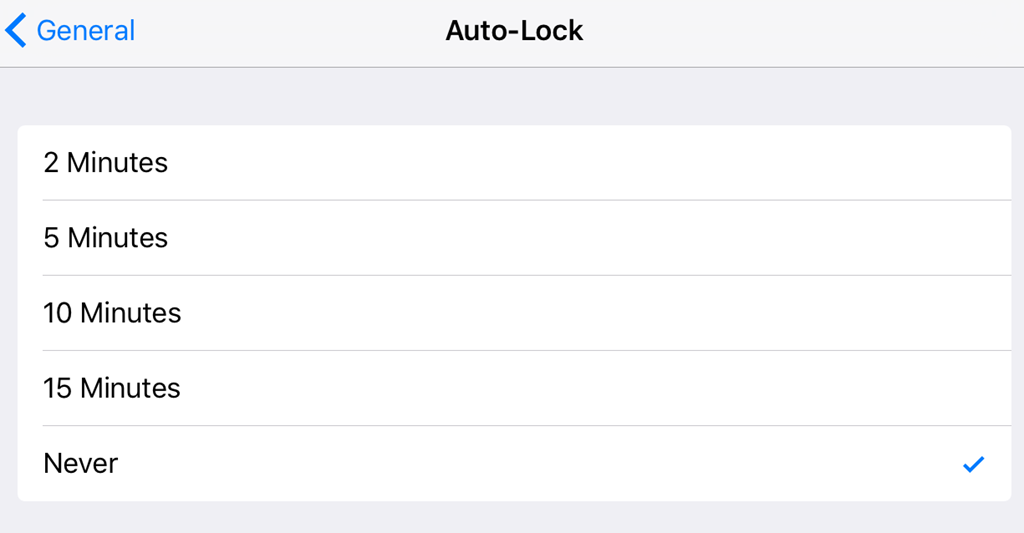 A couple more notes- the iPad should be configured so that the screen never blacks out during a performance. Set General Settings > Auto-Lock to Never.
Also, it’s a good idea during a performance to put the iPad in Airplane mode and turn on Mute to avoid distracting noises and messages.
Other Features
There are a number of features in Set List Maker that I haven’t tried. Some of these require an in-app purchase:
- You can use a remote footswitch like AirTurn to switch songs, or do page up/down.
- You can link multiple devices so that a single device broadcasts its screen to the others.
- You can link multiple devices so that changing songs on one device changes it on all the devices.
- You can configure MIDI devices and send out program/patch changes to control attached synths/lighting-systems/etc.
- You can send out MIDI time code and song position information to control a sequencer, etc.
There is an Android version of Set List Maker available. There is also a BandHelper app which looks just like Set List Maker but has an on-line web component for editing songs and set lists. BandHelper requires monthly subscription.
Arlo Media and Support
 Set List Maker is developed by Arlo Leach at Arlo Media. Arlo is a gigging musician himself (when he’s not coding), and he clearly has a solid approach for how to organize a band.
He has always been very responsive to email queries and bug reports.
Arlo frequently updates the app with bug fixes and features. This is both a blessing and a bit of a curse. There’ve been a couple times over the years where he has radically changed the app. In general, this has always been to increase flexibility and customizability. Sometimes, however, we were quite comfortable with the older less-flexible way, and the updates were a little disruptive. The Layouts feature was a big change when it was introduced! But we eventually got used to it, and it is certainly a flexible feature!
All in all, Set List Maker has become a critical, indispensable part of our band. Thanks for everything Arlo!
August 22, 2017 @ 7:22 pm
Hi,
Also for me it has become indispensable. Now i need help because an error occurs and it does not open anymore with all those about 400 songs worked through inside it. It just says it was closed in a wrong manner and anomalies arose.
Thanks a lot for any idea.
August 23, 2017 @ 1:16 pm
I recommend you open a support ticket at Arlomedia. They have always been responsive to me in diagnosing / solving issues.
https://helpdesk.arlomedia.com/arlomedia/add.html
Good luck!
April 20, 2020 @ 5:27 am
Hi there, this is an excellent review. I appreciate your experience and the blog post as well. Thanks for this help. Love